Customers and CRM
Creating and editing a customer
Add a new customer to Pista, capture the right contact details up front, and keep their profile clean so every RO and message lands where it should.
Creating and editing a customer
Every repair order, estimate, and text message in Pista hangs off a customer profile. Get the profile right the first time and the rest of the workflow just works: messages reach the right phone, history stacks up under one name, and your reports stay clean. This article walks through creating a customer and editing one later.
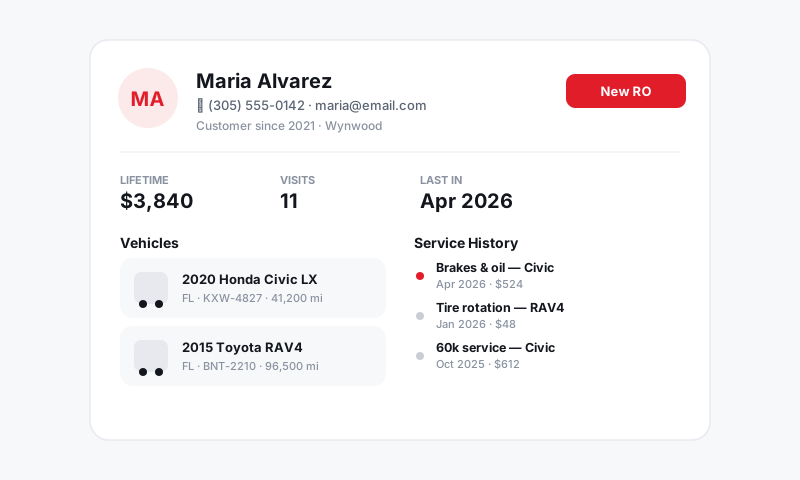
Create a new customer
You can start a customer from the Customers tab or on the fly while writing up a vehicle at the counter.
- Go to Customers and click Add customer.
- Enter the first and last name. For a business, use the company name in the name field and flag it as a Commercial account so fleet rules and tax handling apply correctly.
- Add a mobile number. This is the single most important field, since it powers texting, estimate approvals, and review requests.
- Add an email address if they have one. Email is your backup channel for estimates and receipts.
- Pick the preferred contact method so your team knows whether to text or call.
- Click Save.
That is the minimum to get moving. You can attach a vehicle right after saving, or jump straight into a repair order and add the car there.
Tip: Adding a customer mid-RO? Pista lets you create the profile without leaving the ticket. Just start typing a name in the customer field and choose Create new when no match comes up.
What each field is good for
- Mobile number drives all texting and approvals. Format does not matter much, but make sure it is a real cell, not a landline, or texts will silently fail.
- Email carries estimates, invoices, and receipts as a paper trail.
- Preferred contact method keeps the front counter from calling someone who only wants texts.
- Address feeds invoices and, for commercial accounts, helps with tax jurisdiction.
- Tax exemption belongs on the profile so it carries to every future RO automatically.
Edit a customer
People change phones, move, and get married. Keeping the profile current is a two-minute job.
- Open the customer from Customers or from any RO they are on.
- Click Edit.
- Update the fields that changed, then click Save.
Edits apply going forward. Closed repair orders keep the contact details that were on them at the time, so your records stay accurate to the day of service.
Good to know: If you typed a customer twice by accident, do not delete one and lose the history. Merge them instead so both vehicles and all past visits land on one profile. See Merging duplicate customers.
Avoid the common mistakes
- One person, one profile. Resist creating a fresh customer every visit. Search first.
- Verify the cell number. A typo here means a customer who never gets your estimate.
- Use the commercial flag for fleets so you can bill the company and track all its vehicles together.
A clean customer record is the foundation for everything else in Pista, from a fast checkout to a follow-up text that brings them back.
Still have a question about creating and editing a customer?
Contact support