Account and Billing
Your Pista subscription
See what your plan includes, where to find your billing details, and how to change or cancel your subscription.
Your Pista subscription
Your subscription is what keeps the whole shop running in Pista: repair orders, estimates, inspections, MOTOR labor data, parts sourcing, payments, messaging, reports, the Moto AI service writer, and the mobile app for your techs. Everything lives in one place so you always know what you are paying for and when. Here is how it works.
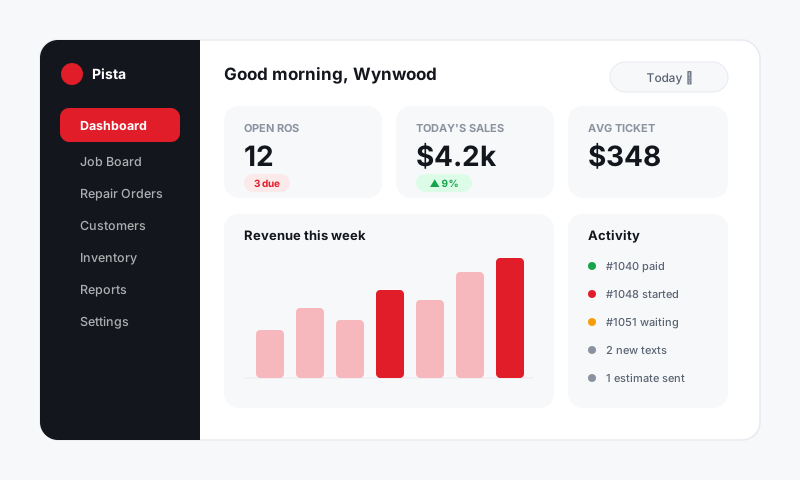
See what your plan includes
- Go to Account, then Subscription.
- The top of the page shows your current plan, your billing cycle (monthly or annual), and your next charge date.
- Below that you will see what is bundled in: number of user seats, connected stores, and any add-ons like extra Moto AI usage or additional locations.
Good to know: Payments processing is billed separately from your subscription. Card and pay-over-time fees come out of your deposits, not your monthly plan charge. See Setting up payments for your shop.
Change your plan
- On the Subscription page, click Change Plan.
- Pick the plan or add-on that fits, then review the prorated amount shown before you confirm.
- Click Confirm. Upgrades take effect immediately; downgrades take effect at the start of your next cycle so you keep what you paid for.
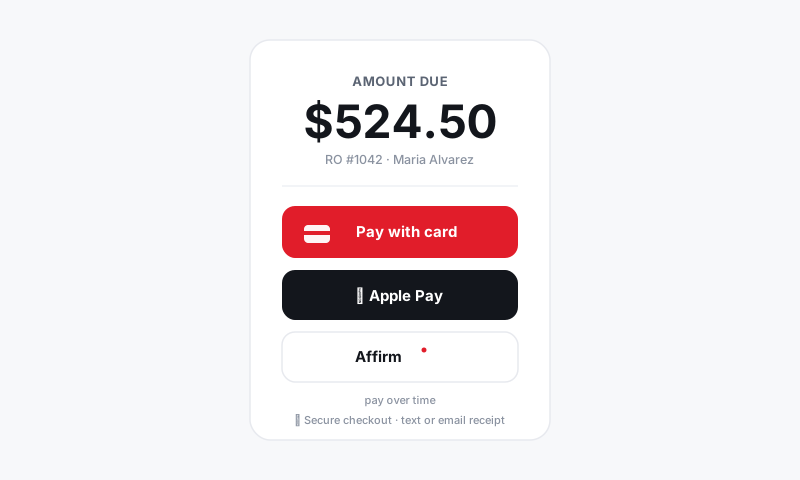
Monthly vs annual billing
Annual billing is cheaper per month and means one invoice a year instead of twelve. If you are past your trial and committed to Pista, switching to annual is the easiest money you will save.
- Open Subscription, then Billing Cycle.
- Choose Annual and confirm. Your card is charged the new annual rate, with credit for time already paid on your monthly plan.
Adding a second store
If you grow from one location to two, like Wynwood and Doral, you add the store as an add-on rather than buying a whole new account. Each store gets its own job board, payments settlement, and reports, all under the same login.
- Go to Account, then Subscription, then Add Store.
- Confirm the per-store rate, then set up the new location in Shop Settings.
Cancel or pause
- Open Subscription and click Manage, then Cancel Subscription.
- Your access stays live until the end of the period you already paid for. Nothing is deleted at midnight.
- Your shop data is retained so you can reactivate later without rebuilding everything.
Tips
- Switch to annual billing once you are out of your trial. The discount usually covers a chunk of an extra seat.
- Watch your next charge date before adding seats mid-cycle so you are not surprised by a prorated line on the invoice.
- Heading into a slow season? You do not have to cancel outright. Talk to support about right-sizing seats instead of losing your history.
Your subscription should be boring in the best way: predictable, transparent, and easy to adjust as the shop grows.
Still have a question about your pista subscription?
Contact support