Account and Billing
Adding users and setting roles
Invite your team to Pista, assign the right role for each person, and manage seats as your shop changes.
Adding users and setting roles
Every person who touches a repair order, runs an inspection, or messages a customer should have their own Pista login. Individual accounts mean clean audit trails, accurate technician efficiency numbers, and no shared passwords floating around the shop. Here is how to get your team in and assign the right role to each one.
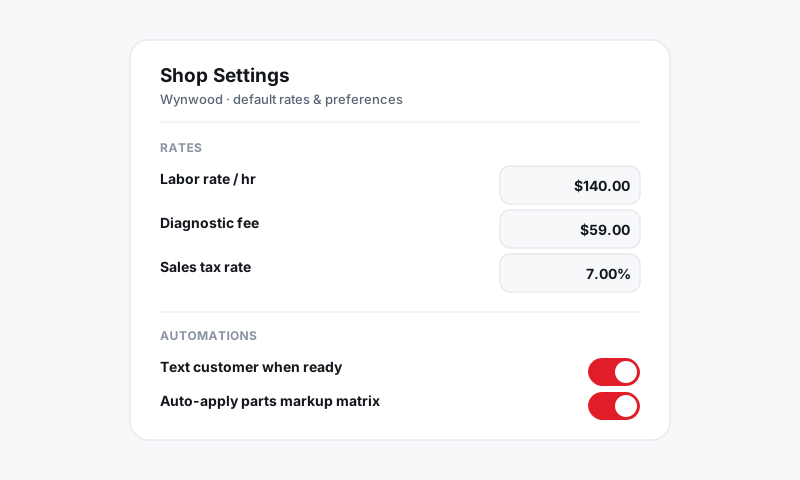
Invite a user
- Go to Account, then Users.
- Click Invite User.
- Enter their name and email, pick a role (more on roles below), and if you run more than one location, choose which stores they can access.
- Click Send Invite. They get an email to set their own password and log in.
Good to know: Each active user takes one seat on your subscription. If you are out of seats, Pista will prompt you to add one before the invite sends. See Your Pista subscription.
Choose the right role
Roles decide what each person can see and do. Start people at the lowest role that lets them do their job, then bump them up if needed.
Owner / Admin
Full access to everything, including billing, subscription, payouts, pricing, and user management. Reserve this for owners and trusted managers.
Service Advisor / Writer
Builds repair orders and estimates, sends them for authorization, messages customers, takes payment, and uses the Moto AI service writer. Cannot change subscription or see owner-level financial reports unless you grant it.
Technician
Works the job board, runs digital inspections, logs labor and findings, and uses the mobile app in the bay. Does not see pricing, margins, or payments.
Parts
Searches and sources parts, builds purchase orders, and receives inventory. Focused on the parts and purchasing side without touching payroll-sensitive data.
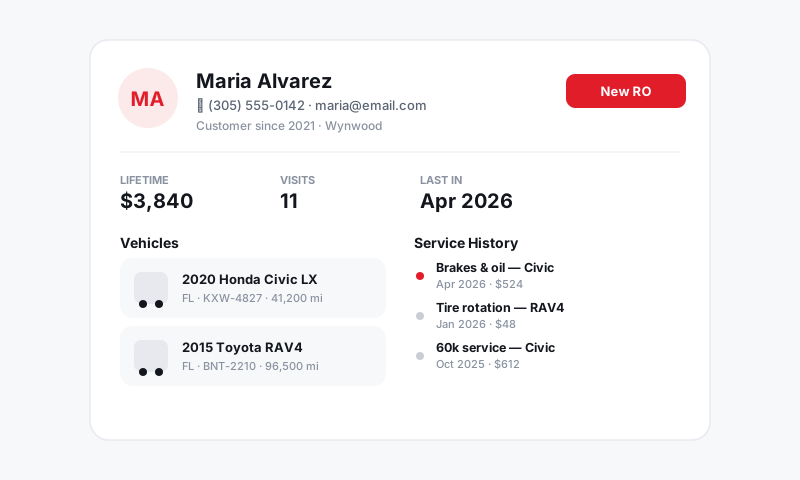
Set store access for multi-location shops
- When inviting or editing a user, open the Stores field.
- Select only the locations they work at. A writer at Doral does not need to see the Wynwood board.
- Their job board, customers, and reports filter automatically to the stores they can access.
Edit, deactivate, or remove
- Go to Account, then Users, and click a person's name.
- Change their role or store access at any time.
- To free up a seat when someone leaves, click Deactivate. Their past work and notes stay on record; they just can no longer log in.
Tips
- Give every tech the Technician role and the mobile app so inspection photos and labor are logged by the person who actually did the work.
- Deactivate, do not delete. Deactivating preserves the history tied to that user, which matters for technician efficiency reporting and any later questions.
- Audit your user list each quarter and pull access for anyone who has moved on. Open seats cost money and stale logins are a security risk. See Permissions and security.
Set roles thoughtfully once and your team gets exactly the access they need, with nothing they do not.
Still have a question about adding users and setting roles?
Contact support