Account and Billing
Updating billing info
Change the card on file, update your billing email and business address, and keep your subscription from lapsing.
Updating billing info
Your billing details are what keep Pista on without a hiccup. When a card expires, a billing address changes, or you want invoices going to your bookkeeper instead of your phone, this is the page you want. It takes a minute, and getting it right means your subscription never lapses at a bad moment. Here is how.
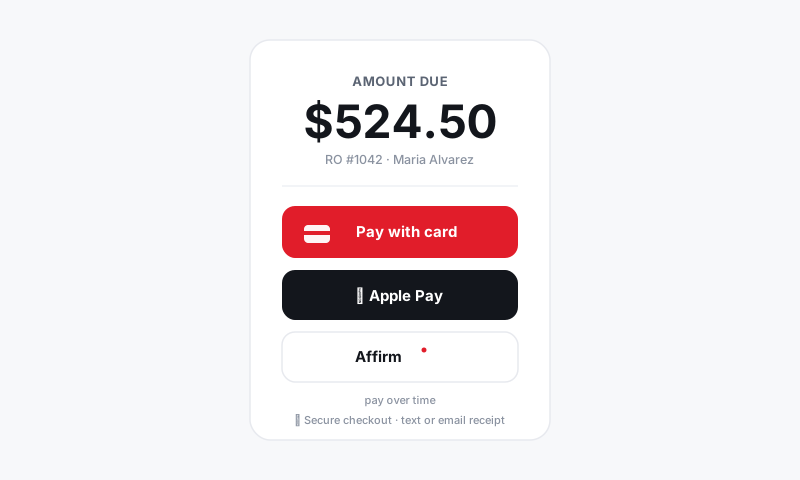
Update the card on file
- Go to Account, then Billing.
- Under Payment Method, click Update Card.
- Enter the new card number, expiration, CVC, and billing ZIP, then click Save.
- The new card becomes the default for your next subscription charge.
Good to know: The card here pays for your Pista subscription. It is separate from the bank account that receives your customer payments. To change where deposits land, head to Setting up payments for your shop instead.
Change your billing email
The billing email is where invoices and receipts go. Point it at whoever actually reconciles the books.
- In Account, then Billing, find Billing Contact.
- Update the email address and click Save.
- Future invoices and payment receipts are sent there automatically.
Update your business address and tax details
- Open Billing, then Business Details.
- Update your legal business name, billing address, and tax ID if it changed.
- Save. These appear on every invoice, so keep them accurate for your records and your accountant.
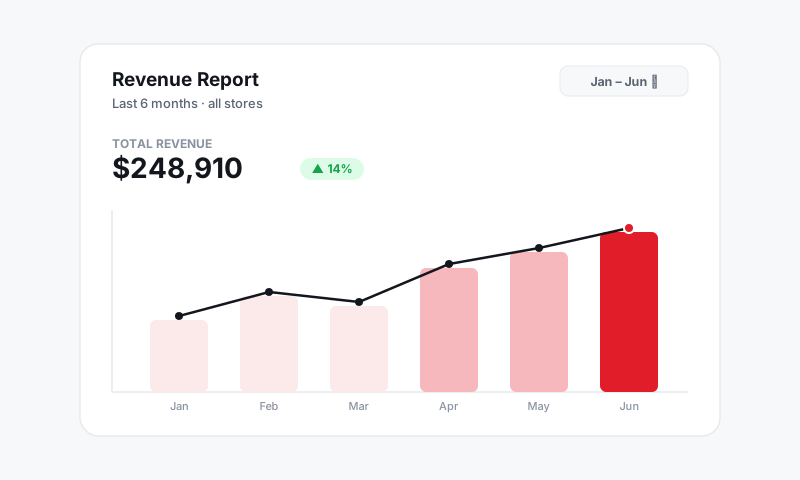
Find and download invoices
- Go to Account, then Billing, then Invoice History.
- Each line shows the date, amount, and status (paid, due, or failed).
- Click any invoice to view it or Download PDF for your bookkeeping.
Fix a failed payment
If a charge fails, usually an expired or maxed card, Pista keeps your shop running for a short grace period and emails the billing contact.
- Open Account, then Billing. A failed payment shows a banner at the top.
- Click Update Card and enter a working card.
- Click Retry Payment to settle the balance right away instead of waiting for the next attempt.
Tips
- Update your card before it expires, not after the failed-charge email. Cards reissued by your bank get new numbers, so an autopay you set up last year can quietly break.
- Send invoices to a dedicated billing email your bookkeeper monitors, so a failed-payment notice never sits unread in a busy owner's inbox.
- Download your invoice PDFs at tax time straight from Invoice History instead of digging through email threads.
Keep this page current and your subscription, your seats, and your team's access all just keep working in the background.
Still have a question about updating billing info?
Contact support