Payments
Sending an online invoice
Send a finished repair order as a secure pay-by-link invoice so customers can pay from their phone before they arrive.
Not every customer pays standing at your counter. Some are at work, some send a spouse to grab the car, and some just want to settle up before they show. An online invoice lets you text or email a secure pay link so they can pay from anywhere, on any method, and the RO updates itself the second they do. Here is how to send one.
Send the invoice
- Open the finished RO and click Checkout.
- Choose Send Invoice instead of taking payment at the counter.
- Pick how to deliver it: text, email, or both. Text gets opened fastest.
- Confirm the customer's mobile number or email, then click Send.
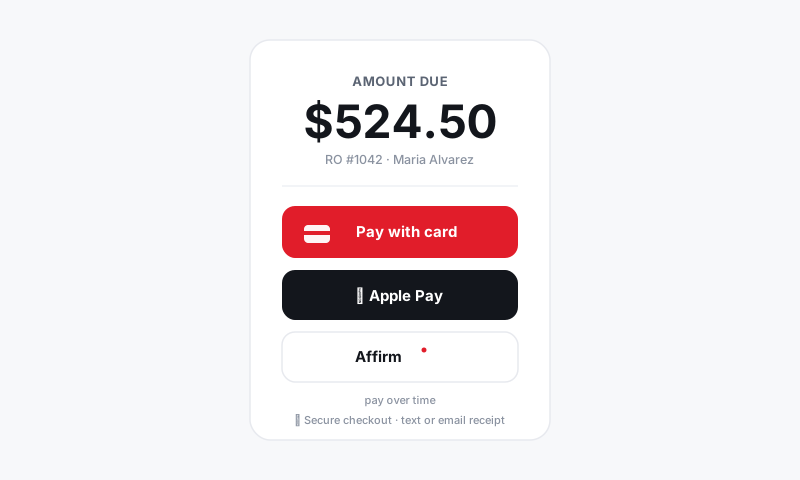
The customer gets a clean, mobile-friendly invoice showing the jobs done, the parts, the labor, and the total, with a Pay Now button.
Good to know: The link is secure and tied to that one RO. The customer can review every line item, but they cannot edit the invoice or see anyone else's.
What the customer can do
From the link, the customer can:
- Review the full itemized invoice and any attached inspection findings.
- Pay with card, Apple Pay, or Cash App.
- Choose a pay-over-time option like Affirm, Klarna, or Sunbit if you have those enabled.
Watch it pay itself off
- When the customer pays, the RO flips to Paid automatically. No one has to mark it.
- The payment reconciles into your deposit batch like any counter payment.
- The customer gets a receipt instantly, and a copy lands in their customer history.
Tips
- Send the invoice as soon as the car is Ready. Plenty of customers pay before they even leave work, which means a faster handoff and zero counter line.
- Pair the invoice with a "your car is ready" text so the customer gets the good news and the pay link in one motion. See Messaging and Inbox.
- For a deposit on a job not yet finished, send a deposit request instead of a full invoice. See Taking a deposit.
- If a customer says they paid but the RO still shows a balance, check the unified inbox for the receipt and refresh. Payments post in real time, so it almost always means the link was not actually completed.
An online invoice turns "come back and pay" into "tap to pay," and your board stays current without anyone touching it.
Still have a question about sending an online invoice?
Contact support